 Live Panels
Screens your AI can talk to.
Live Panels turns any TV, tablet, or browser into a live dashboard your AI assistant can build, update, and read back — no more screenshots of a frozen screen.
Sign in to get started How it works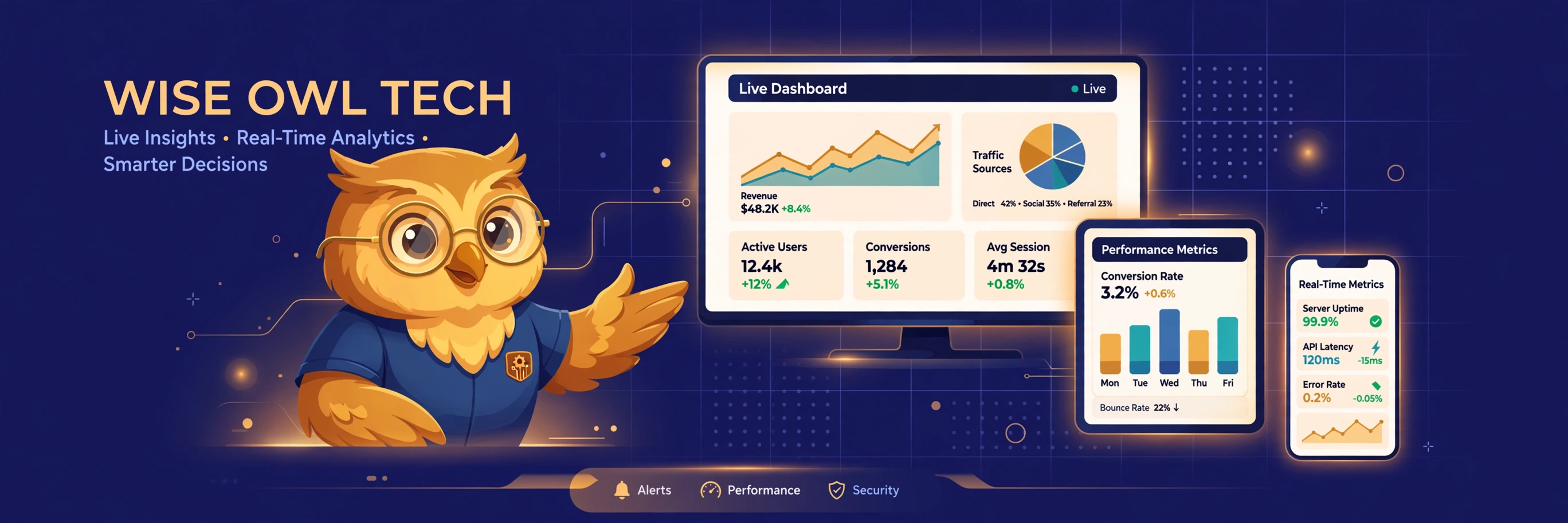
What Live Panels does
Three things, done well: your assistant builds the dashboards, any screen shows them, and the data stays live.
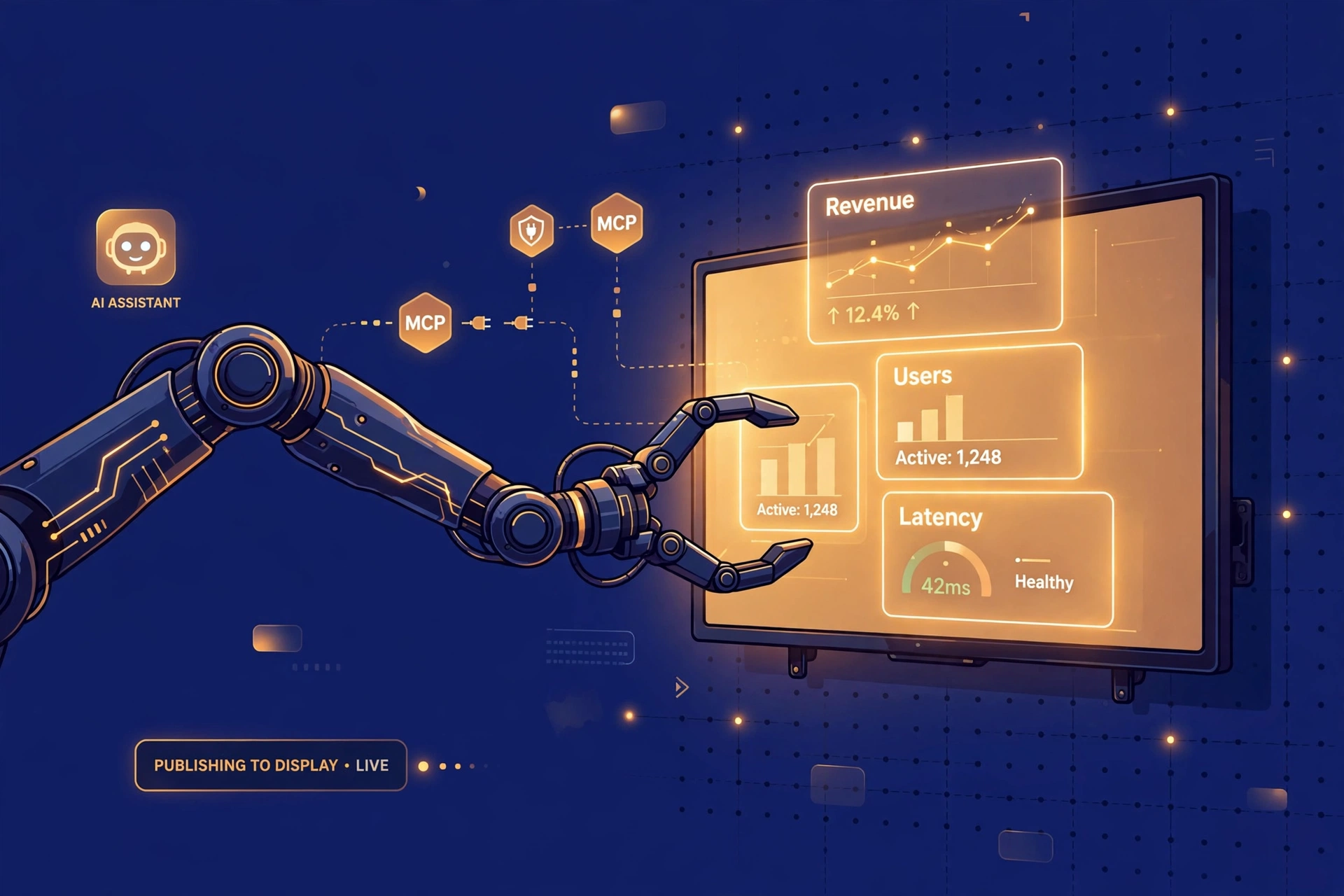
Control it with your AI assistant
Connect Claude, Copilot, or any MCP client over OAuth 2.1. Your assistant creates dashboards, pushes live data, and reads the state back.
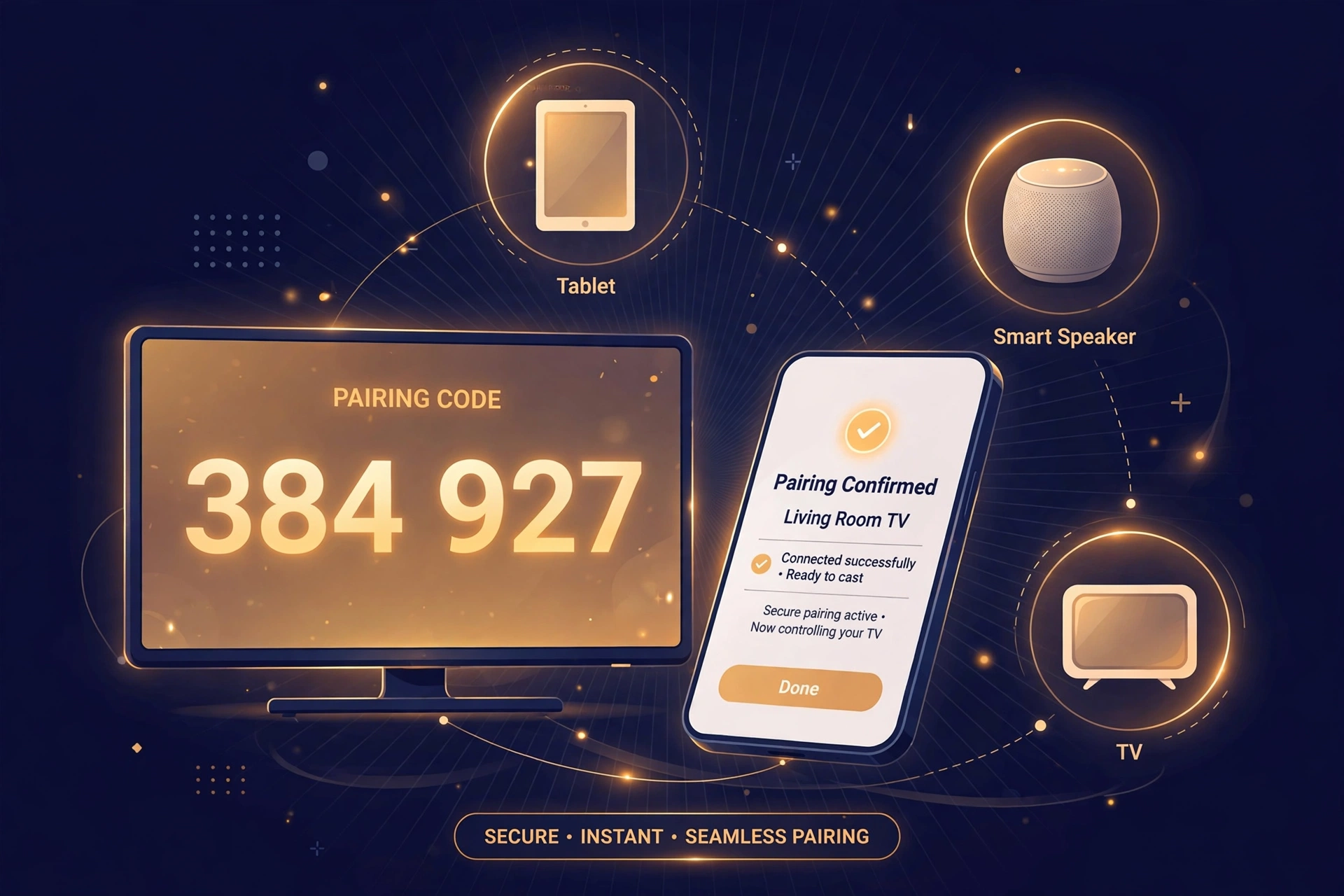
Pair any display in seconds
Open Live Panels on a TV, tablet, or browser. It shows a six-digit code — enter it in Settings → Pair a display, and it is live.
Live dashboards for home and servers
Server stats, home dashboards, and glanceable panels that update in real time. What you see is what is happening right now.
How it works
From sign-in to a live screen in four steps.
Sign in
Use your Google or GitHub account. Your workspace is private to you.
Pair a display
Open the app on any screen and approve its six-digit code.
Connect your assistant
Add the MCP server in Settings. Sign in once, approve access, done.
Watch it go live
Ask your assistant for a dashboard. It appears on your display, live.